
Importing, merging and deleting
Available onEstimatorBuilder
Tools for getting a supplier list into shape: Import for bulk entry, Export to take a copy, Merge for duplicates, and Delete for mistakes.
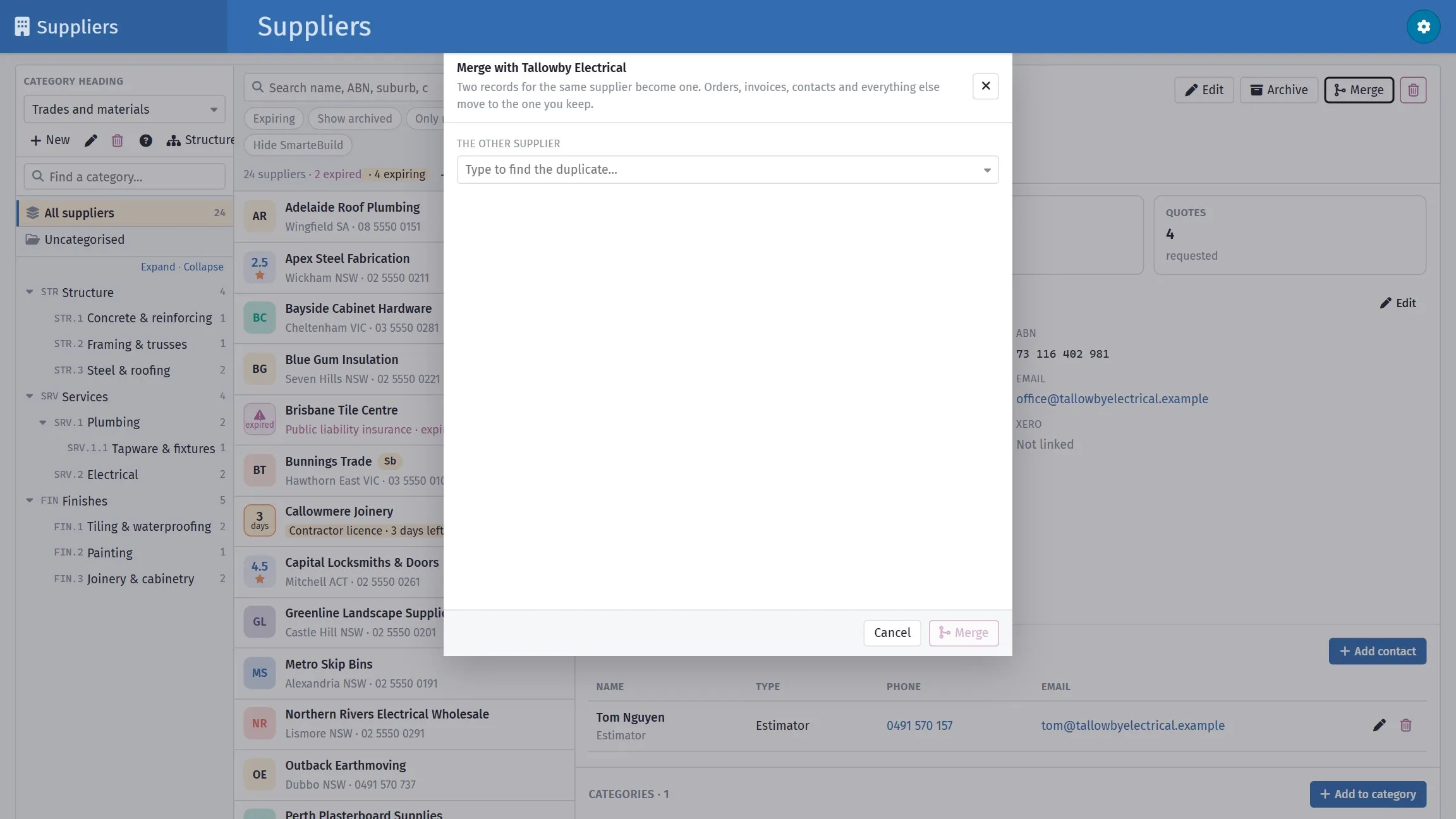
Merging joins duplicates without losing what is attached to either.
Importing from Excel
Section titled “Importing from Excel”Import above the supplier list walks through the steps:
- Download the template — a spreadsheet with the columns SmarteBuild recognises.
- Fill it in, one supplier per row, starting at row 2.
- Upload your file.
- Pick the worksheet and check which of its columns holds each field.
- Choose the category the new suppliers are filed under.
- Import.
You do not have to use the template. Any spreadsheet works, because step 4 lets you point each field at whichever column holds it. The template simply saves you that work: its headings are recognised automatically, so the mapping arrives already filled in.
Only the supplier name is required
Section titled “Only the supplier name is required”Every other field can be left as (not mapped). A list with no ABNs, or no contact people, imports perfectly well — those fields are just left blank, and you can fill them in later. A row with a contact’s name, phone or email also creates that contact.
Check the mapping before you import even when it looks right. If a heading is not recognised the field is left unmapped rather than guessed at, so an unexpected (not mapped) usually means a heading is spelled differently from what you expect.
A row whose supplier name is already in your list — or repeats an earlier row of the same file — is skipped rather than imported twice. The result tells you how many suppliers were created, and lists the rows that were skipped and why.
Before you import
Section titled “Before you import”Half an hour in the spreadsheet is worth a day of correcting records afterwards.
- Deduplicate. Most existing lists carry the same business more than once.
- Standardise the names.
Barwon Concrete,Barwon Concrete P/LandBARWON CONCRETE PTY LTDwill import as three suppliers. - Sort them by trade, and import each trade into its category.
- Check the emails. An import is the easiest moment to fix them all at once.
- Drop the dead ones. Businesses that have closed do not need importing.
Exporting
Section titled “Exporting”Export downloads the suppliers in the category you have selected — or all of them, with All suppliers selected — as an Excel file, with their contacts.
Merging duplicates
Section titled “Merging duplicates”Merge combines two supplier records into one.
Duplicates accumulate no matter how careful you are — someone adds Surf Coast Steel while Surf Coast Steel Pty Ltd already exists, usually mid-job when they
are in a hurry. The symptom is a supplier whose history looks thinner than you
remember, because half of it is attached to the other record.
Open the supplier, click Merge and pick the other record — archived ones are included, since an old duplicate is the usual case. Keep chooses which record survives. Before anything happens you see exactly what moves across — orders, invoices, quotes, contacts, products, dates, ratings — and how clashes are settled:
- Where both have a value (a date, a rating, the Xero link), the kept record’s wins.
- Where the kept record is blank (no ABN, no note), the other one’s is used.
Merge and delete then moves everything and deletes the other record, all in one go: if anything goes wrong, nothing changes. A merge cannot be undone.
Only your own company’s suppliers can be merged — not SmarteBuild’s shared ones.
Before merging
Section titled “Before merging”- Confirm they are the same business.
Smith PlumbingandSmith Plumbing Servicesmay be two genuinely different companies. - Decide which record survives — usually the one with the more complete details and the longer history.
Deleting
Section titled “Deleting”A supplier can only be deleted when nothing refers to it — no orders, invoices, quotes, products, defects or schedule tasks. Otherwise Delete tells you what uses it and offers Archive instead, which hides it and keeps its history. If it is a duplicate, merge it instead.
Deleting removes the supplier with its contacts, category filings, dates and certificates, and ratings.
A tidy-up worth doing once
Section titled “A tidy-up worth doing once”If your list has grown organically for a few years:
- Sort by name and read down it. Duplicates sit next to each other.
- Merge them.
- Archive anyone you have not used in two years.
- File everyone remaining under their trades.
- Check the contact emails on the twenty you use most.
An afternoon, and it makes every tender afterwards faster.