
Sharing documents
Available onEstimatorBuilder
Two kinds of people need your documents: the client, who already has a portal for the job, and everyone else - the subcontractor pricing from the revised plans, the supplier checking a detail, the engineer, the certifier.
Both are done from one window. Open a file and click Share (the share icon beside New version), or hover over a folder on the left and click its share icon.
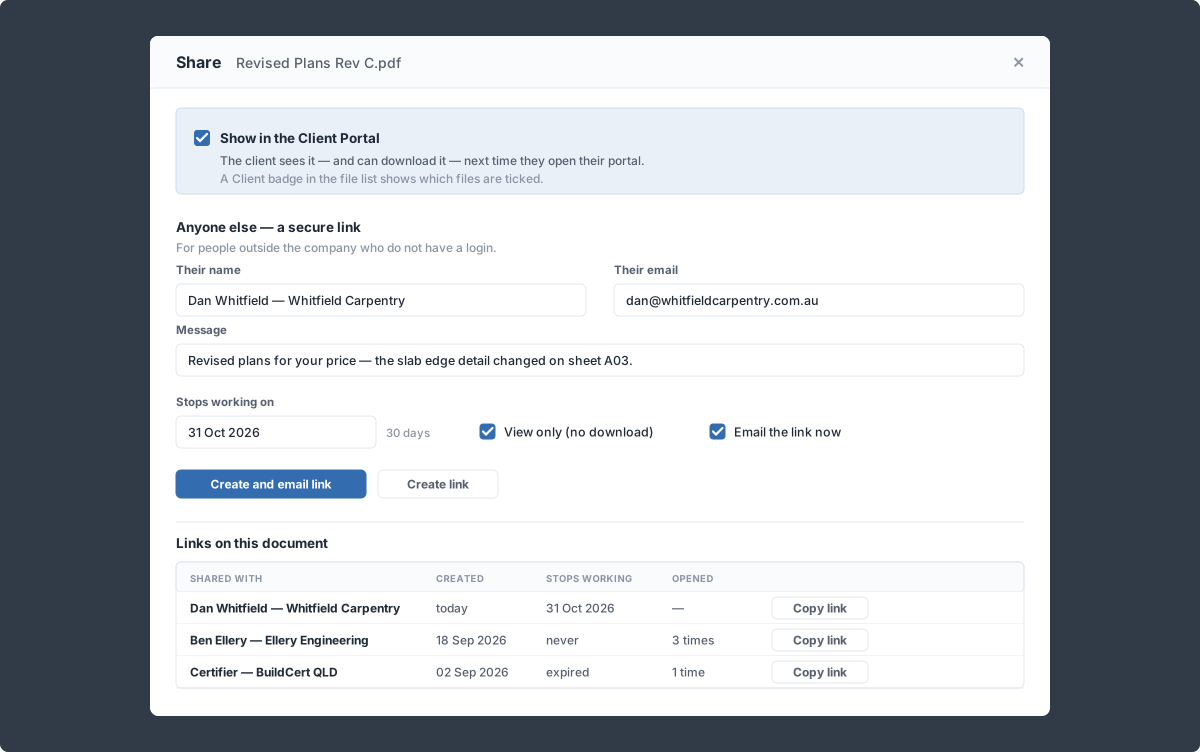
One window: the client tick at the top, secure links underneath.
The client
Section titled “The client”Tick Show in the Client Portal and the client sees the document - and can download it - next time they open their client portal. Untick it and it is gone from their page. A small Client badge in the file list shows which files are ticked.
For a folder, Show all to the client ticks every current file in it at once, and Hide all from the client unticks them.
Old versions and obsolete documents never show on the client’s page, even when ticked. See also Sharing documents, photos and selections.
Anyone else - a secure link
Section titled “Anyone else - a secure link”For people outside the company who don’t have a login. Fill in:
| Field | What it does |
|---|---|
| Their name | Who the link is for - shown on the link list and on the page they open. |
| Their email | Where to send it. Needed only if you email it from here. |
| Message | Optional. Shown in the email and at the top of the page they open. |
| Stops working on | The last day the link works. Starts at 30 days; untick for a link that does not expire. |
| View only (no download) | They can read the document on screen but there is no Download button. |
| Email the link now | Sends it straight away from your company’s email, with you copied in. Their reply comes to you. |
Click Create and email link (or Create link if you are not emailing it). The new link appears at the top of the list, where Copy link puts it on your clipboard - to paste into a text message or your own email instead.
A file link always shows that version. A folder link shows the folder’s current files at the moment they open it - not its sub-folders or old versions - so a file you add to the folder later is there too.
What they see
Section titled “What they see”A plain SmarteBuild page with your company’s name at the top, the job name, who shared it, your message and when the link stops working. The files are listed on the left with a viewer beside them; PDFs and photos open in the viewer, anything else has a Download button (unless the link is view-only).
They do not need an account, and they cannot see anything else on the job.
Who opened it
Section titled “Who opened it”Each link in the Share window shows opened 3x (last 22 Sep, 2:12 pm) or not opened yet. Useful when a subcontractor says they never got the drawings.
Cancelling a link
Section titled “Cancelling a link”Click the cancel icon beside Copy link. It stops working straight away - the person sees “This link has been cancelled” - and stays in the list, greyed out, as a record. Expired links stay in the list the same way.
Cancel and send a new one when:
- the link went to the wrong person,
- the job has moved on and they should not still be looking at it, or
- you need to change the expiry or view-only setting (make a new link with the right settings).
Who can share
Section titled “Who can share”Anyone with permission to upload and edit documents can tick files for the client and create or cancel links. Others can open the Share window to see what is shared, but not change it.