
Issue, send and correct the minutes
Available onBuilder
Issue the minutes
Section titled “Issue the minutes”-
Open the meeting and choose Draft PDF to read the minutes first. The draft is not kept.
-
Choose Issue minutes. The window says the meeting will be locked, how many open items carry to the next meeting, and that a copy is filed in Documents. Choose Issue minutes.
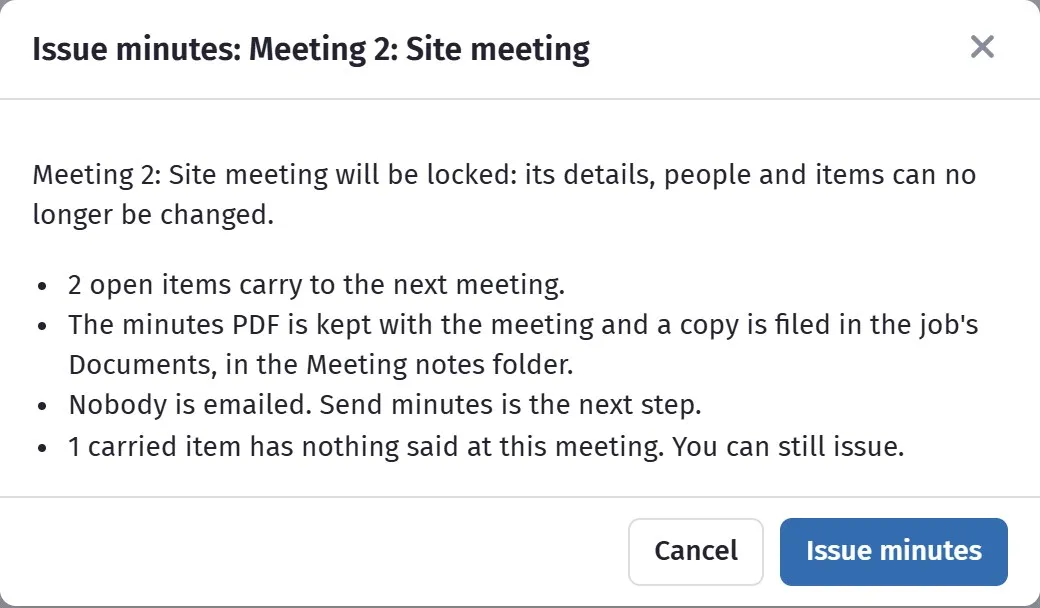
Read the window before you issue. It also tells you when a carried item has nothing said at this meeting; you can still issue.
The minutes are kept with the meeting, and a copy goes into the job’s Documents, in a Meeting notes folder. The meeting can no longer be changed. Issuing emails nobody.
You can issue on or after the day of the meeting, once it has at least one item, and once the meeting before it is issued: minutes go out in order.
Send the minutes
Section titled “Send the minutes”-
On an issued meeting choose Send minutes. Everyone on the list who has an email address is ticked. A staff member’s, client’s or supplier’s address comes from SmarteBuild and is not shown. For someone you typed in, type their Email address; it is kept for next time.
-
Untick anyone who should not get them. Add others under Also send to, separated by commas.
-
Type a Message if you want one. It goes above the standard wording.
-
Choose Send to (the number of people).
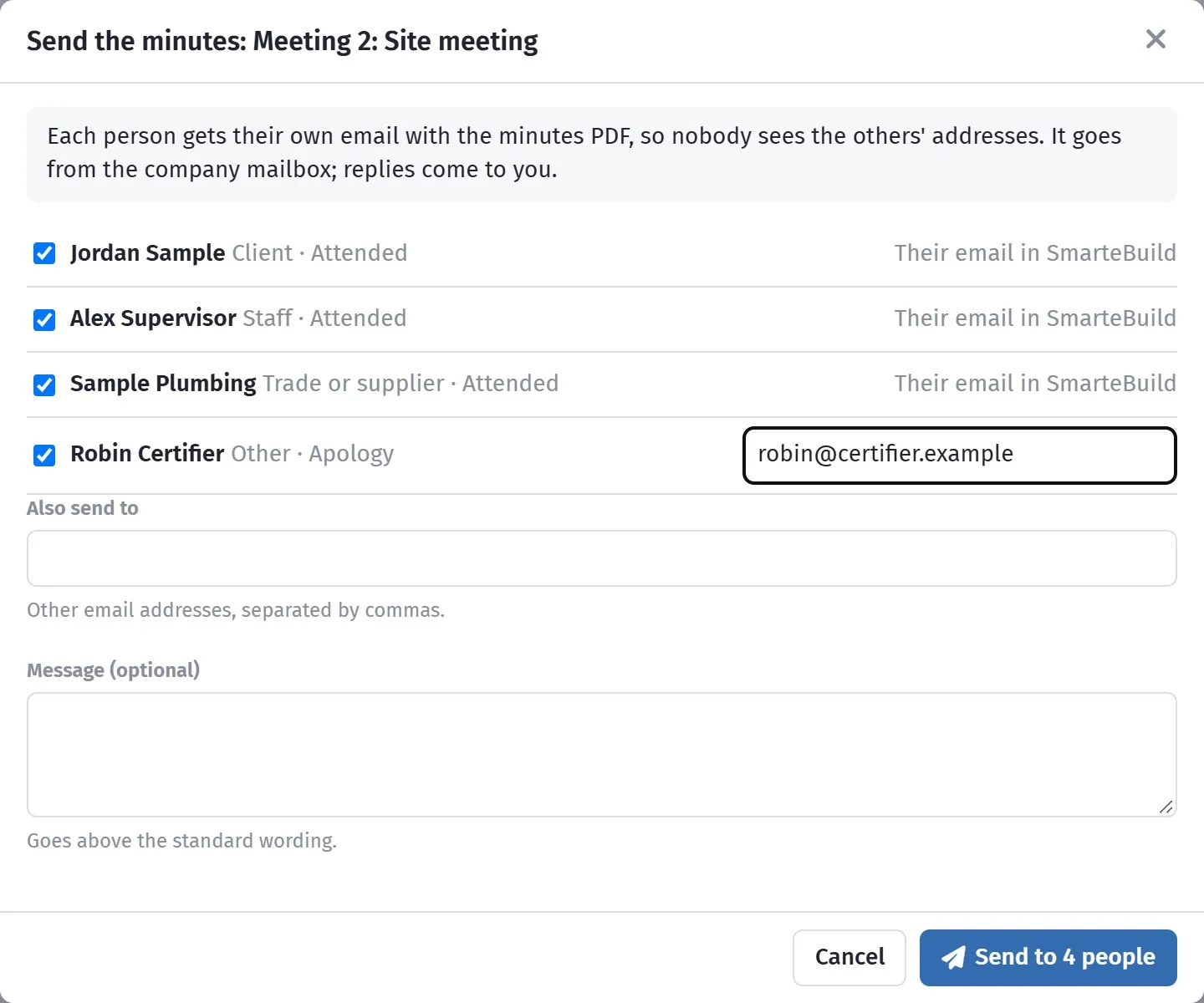
Addresses kept in SmarteBuild are not shown. Only the person typed in at the meeting needs an address typed.
Each person gets their own email with the PDF, so nobody sees the others’ addresses. The email opens with “Hi” and their first name, says which meeting and job it is, and ends with your name and company. It goes from your own email when you have connected one, otherwise from the company mailbox with replies coming to you. Minutes sent on the meeting lists who was sent what and when, or why an address could not be sent.
The client signs on the client portal
Section titled “The client signs on the client portal”The issued minutes of a Pre-start or a Client meeting show on the client portal, on a Meetings tab, to each client who is on the meeting’s list marked Attended. Site meetings and other kinds never show there, and nor do they for a client who sent an apology.
The client opens the minutes, ticks I agree these minutes are a true record, types their name and draws their signature. Then:
- the meeting shows Signed by client, with their name and the date;
- a signed copy (the minutes plus a signing page with the signature, the time and the device) goes into the job’s Documents, in the Meeting notes folder.
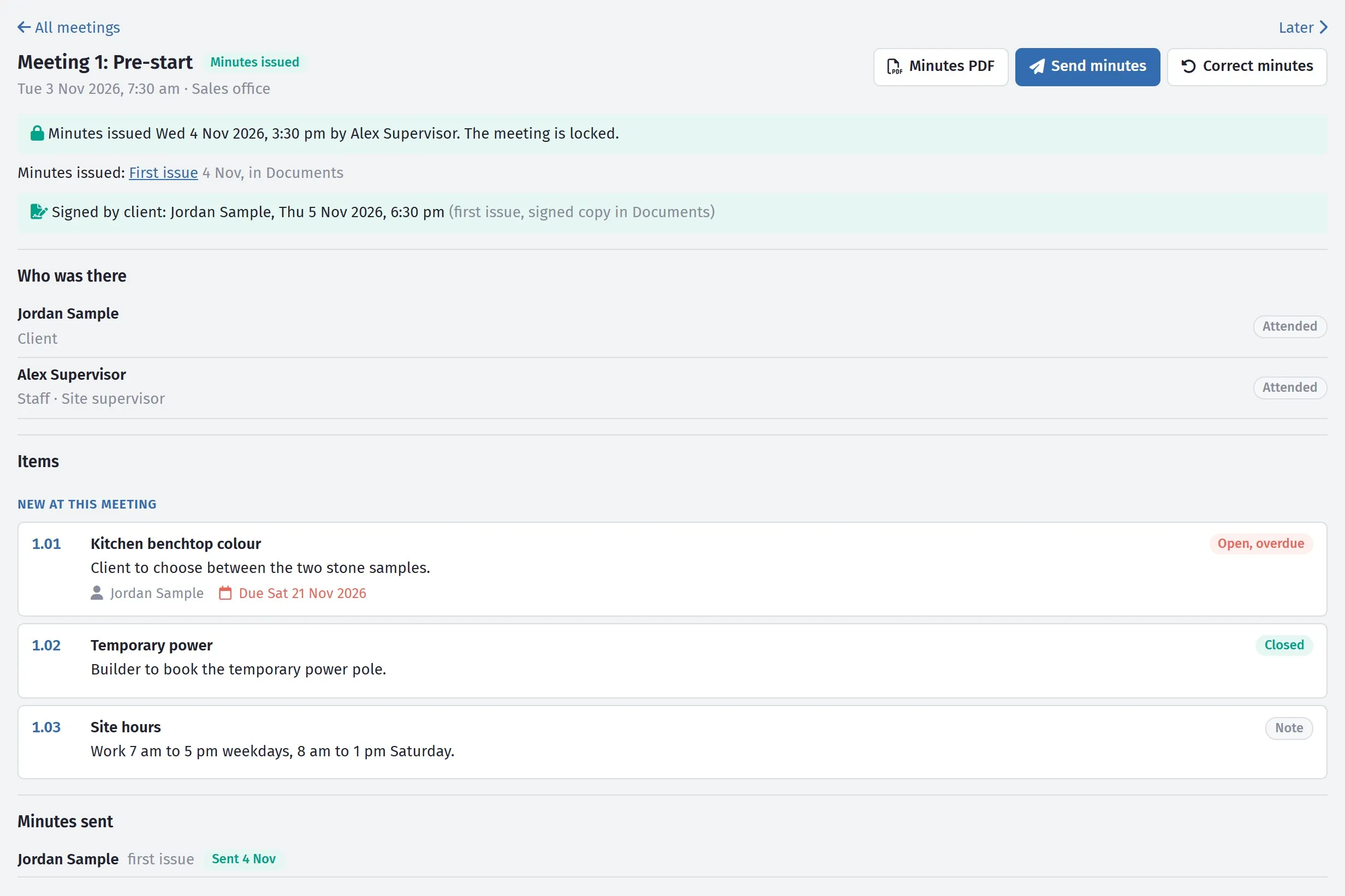
An issued meeting: locked, filed, signed by the client, and who the minutes were sent to.
Minutes that are being corrected cannot be signed. After a correction is issued, the client can sign the new issue; their signature on the earlier issue stays with it.
Correct issued minutes
Section titled “Correct issued minutes”-
Open the issued meeting and choose Correct minutes (needs “Meeting notes: correct issued minutes”).
-
Type What needs correcting, for example “Wrong due date on item 2.03”. It is printed on the corrected minutes. Choose Correct minutes in the window.
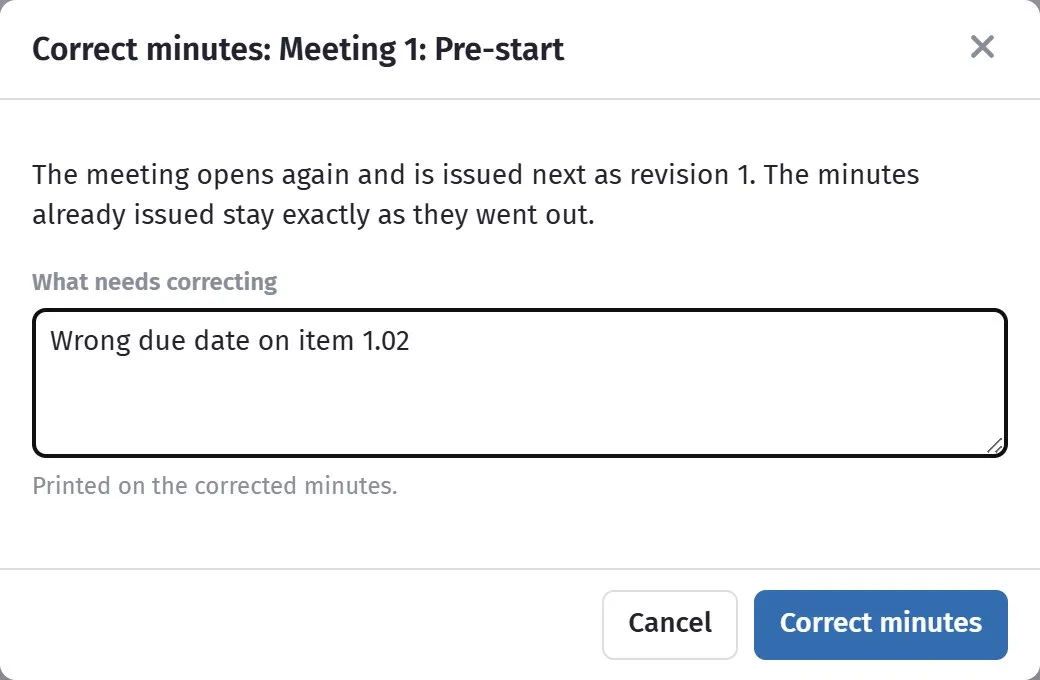
The minutes already issued stay as they went out; the corrected ones go out next as revision 1.
-
Make the corrections, then choose Issue revision 1.
The minutes already issued are kept exactly as they went out; Minutes issued at the top of the meeting opens each issue. Revision 1 is filed in Documents as its own document. Send it with Send minutes.
While a meeting is being corrected, the next one cannot be issued. If the next meeting’s minutes are already issued, the corrections do not reach it; the window says so first.